
At sevenseven.tech, our philosophy is simple: If you are spinning up an EC2 instance in AWS, you might be using the cloud wrong. We prefer Serverless (Lambda, Fargate) and Managed Services because they optimize resource usage and significantly reduce costs.
But we live in the real world.
For many enterprises, "Legacy" is not a dirty word, it's the reality. We recently worked with a client who operates across 12 AWS Accounts with a fleet of 30 to 50 EC2 instances per account. To make matters worse, it was a mixed environment: a chaotic blend of Linux distributions and Windows Servers.
Keeping 600 servers patched and secure is usually a full-time job for a team of SysAdmins. We turned it into an automated task that takes less than an hour.
Here is how we streamlined their security using AWS Systems Manager (SSM).
The Challenge: The "Patch Tuesday" Nightmare
Before we stepped in, the client's patching process was a mix of manual effort and partial automation using Ansible.
While Ansible is fantastic for Linux, using it to patch Windows is often painful. It relies on WinRM (Windows Remote Management) instead of SSH. Setting up secure listeners, managing authentication, and handling the sheer slowness of Windows updates over remote connections resulted in frequent timeouts and failed jobs.
The result?
- Maintenance Windows were too long: Engineers spent hours watching progress bars.
- Security Gaps: Because patching was difficult, it was sometimes delayed.
- Access Risks: Admins needed RDP/SSH access to servers, increasing the attack surface.
Phase 1: The Switch to AWS Systems Manager (SSM)
The first step was moving to a cloud-native tool. We deployed the SSM Agent to the entire fleet.
This immediately solved the connectivity problem. SSM doesn't use SSH or RDP. The agent on the server reaches out to AWS securely. This allowed us to close port 22 (Linux) and 3389 (Windows) to the outside world, instantly hardening the security posture.
But what if an engineer needs to connect?
We enabled AWS Session Manager. This feature allows admins to open a secure shell (Linux) or perform port forwarding for RDP (Windows) directly inside the AWS Browser Console. You get full administrative access without VPNs, bastion hosts, or open firewall ports.
We utilized AWS Patch Manager to define "Patch Baselines."
| Baseline Rule | |
|---|---|
| Linux | "Auto-approve all security updates released > 7 days ago." |
| Windows | "Auto-approve CriticalUpdates and SecurityUpdates." |
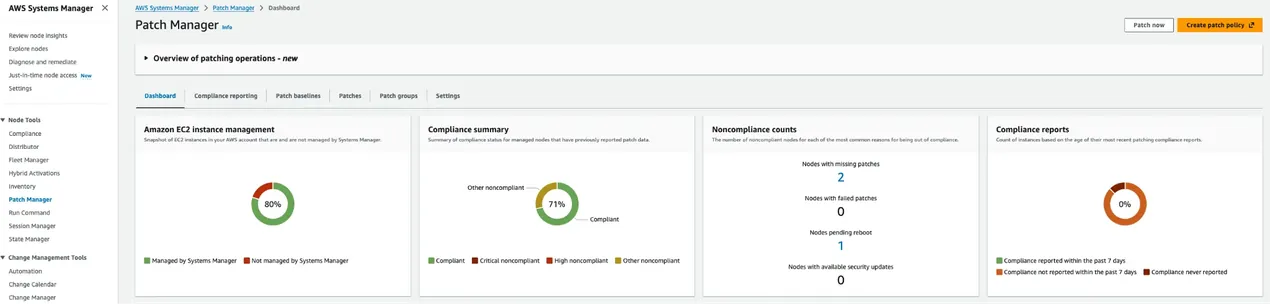
Figure 1: The Patch Manager Console. A clear, single-pane-of-glass view showing which instances are compliant and which are missing critical security updates.
Phase 2: Orchestration with Custom Documents
Phase 1 got us organized, but patching was still sequential and slow. AWS Patch Manager is great, but out of the box, it often processes instances in small concurrency groups to prevent downtime.
When you have hundreds of servers, "safe and slow" isn't an option during a tight maintenance window.
We built a Custom Automation Document (SSM-Patching__PatchInstance).
Instead of writing complex Python or Bash scripts, we used the AWS Systems Manager Visual Designer. This allows you to drag and drop logic steps to create a sophisticated workflow.
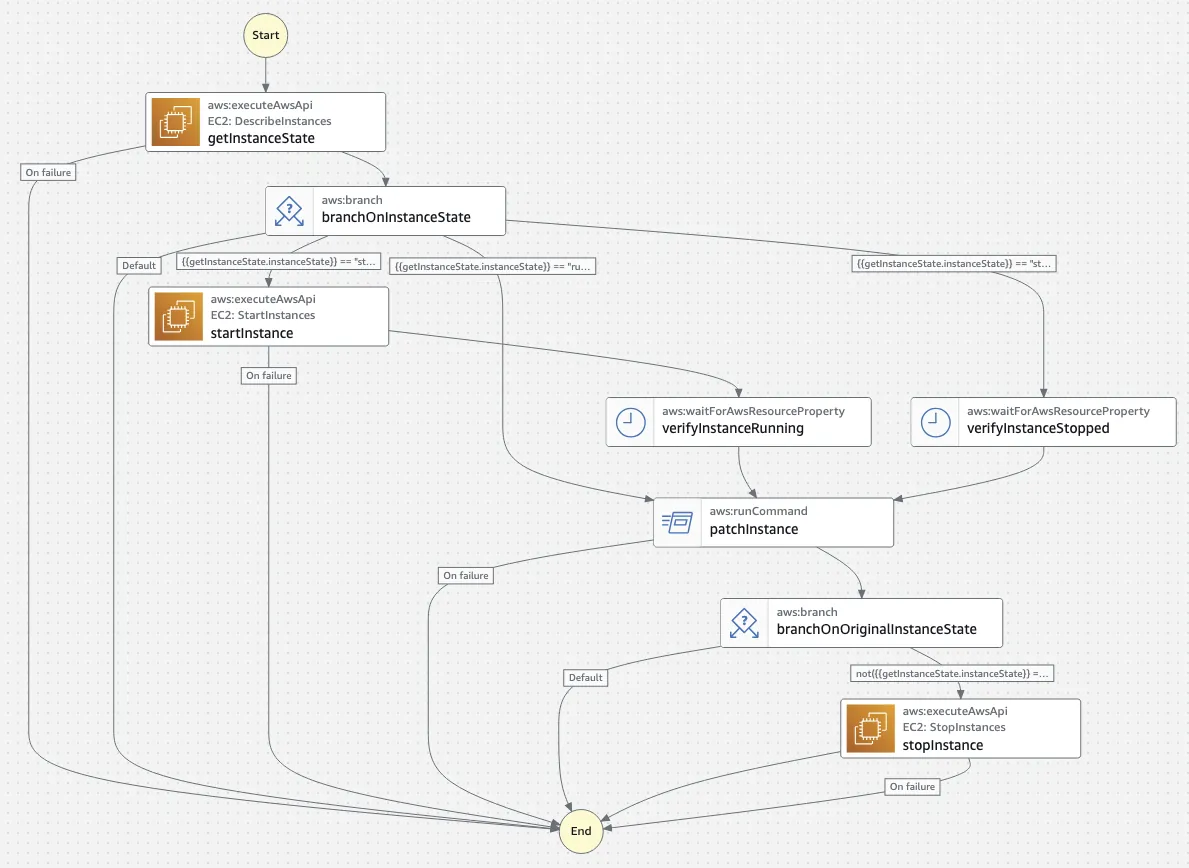
Figure 2: The Visual Workflow. Automation that manages instance state prior and after running CMD:RunPatchBaseline. Document provides a complete patching workflow with configurable reboot options and output logging to S3.
This custom document allowed us to unleash Mass Parallelism.
The Math: 4 Hours vs. 45 Minutes
Let's look at a typical patch cycle for 50 mixed instances (25 Linux, 25 Windows) in a single account.
Our custom document targets all 50 instances simultaneously.
| Step | The Old Way (Serial/Partial Automation) | The New Way (SSM Custom Document) |
|---|---|---|
| Linux patching + reboot | ~10 minutes per server. | The Linux servers finish in 10 minutes. |
| Windows patching + reboot | ~20-30 minutes per server. | The Windows servers finish in 30 minutes. |
| Human attention | Even with partial batching, technicians often spent 4 to 5 hours babysitting the process to ensure Windows nodes came back online. | The workflow handles errors and retries automatically. |
Total Time: The window is now dictated by the slowest single server, not the sum of all servers. The entire fleet is patched in under 45 minutes on average.
The Benefits of "Cloud-Native" Patching
1. Zero-Touch (or One-Touch) Compliance
We adopted a flexible strategy based on the environment:
| Strategy | |
|---|---|
| Non-Production | Patching happens automatically at 2:00 AM. The team wakes up to a report, not an alarm. |
| Production | We maintain a "Human-in-the-Loop" approach. Engineers manually trigger the maintenance window to ensure real-time monitoring. However, because the execution is fully automated via our custom document, what used to be a 4-hour stressful vigil is now a 45-minute supervisory task. |
2. Unified Reporting & S3 Archiving
In a mixed environment, knowing what is patched is half the battle. SSM Inventory collects data from both Windows and Linux into a single dashboard.
We also configured a designated S3 Bucket for each environment. After every patch cycle, detailed execution logs and compliance reports are automatically pushed to S3. This provides an immutable history for auditors, showing exactly which CVEs were patched on which machines across all 12 accounts, without anyone needing to manually save a CSV.
3. Cost Savings: Reclaiming Sunday Nights
The software itself (AWS Systems Manager) is free for EC2 instances, so the software cost remains zero. The real return on investment (ROI) comes from reducing Engineering Overtime where it hurts the most: the Production Maintenance Window.
Patching Production is never a solo job. For this client, the Sunday night window required a "War Room" of 3 Senior Engineers:
| Role | Job in the Window |
|---|---|
| The DBA | To manage manual failovers and verify data integrity. |
| Application Support | To handle the graceful undeployment and redeployment of the apps. |
| The Cloud Engineer | To execute the patching itself. |
The Math of Efficiency (Production Window):
| Old Process | New Process | |
|---|---|---|
| Crew | 3 Engineers | 3 Engineers |
| Time per Window | 4 Hours | 45 Minutes |
| Overtime per Month | 12 hours | 2.25 hours |
We reduced the mandatory weekend work by over 80%.
Over the course of a year, that is ~117 hours of expensive, senior-level overtime eliminated.
Beyond the direct financial savings (thousands of dollars in overtime pay), the cultural impact is massive. We transformed a grueling, 4-hour marathon that required a full squad into a quick, routine check-up. We traded "Burnout" for "Business as Usual."
Conclusion: Legacy Infrastructure, Modern Operations
Just because you are stuck with legacy EC2 instances doesn't mean you have to be stuck with legacy operations.
By leveraging AWS native tools like SSM and Automation Documents, we turned a chaotic, multi-hour "War Room" scenario into a streamlined, automated task. We improved security, closed vulnerability gaps, and most importantly, gave the engineering team their Sunday nights back.
Struggling with EC2 management?
Contact us at support@sevenseven.tech or fill out our contact form.
Whether you are fully serverless or still running a fleet of legacy Windows servers, we can help you automate the pain away.